Custom Clock applet
From SqueezeboxWiki
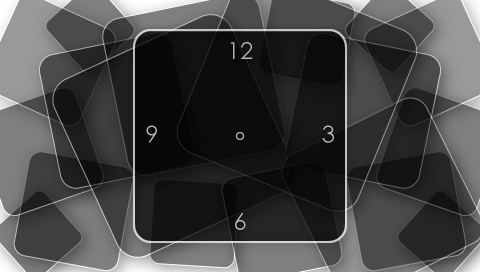
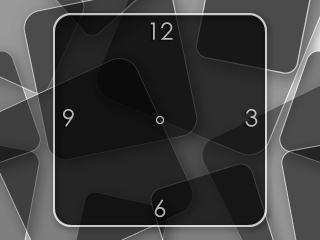
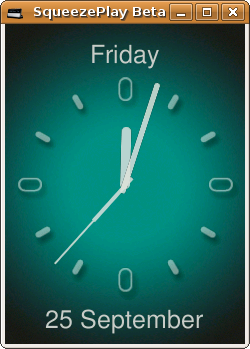
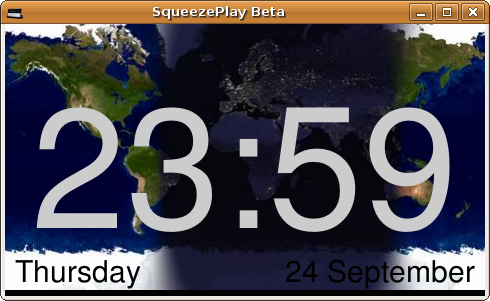
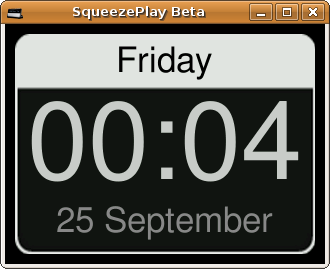
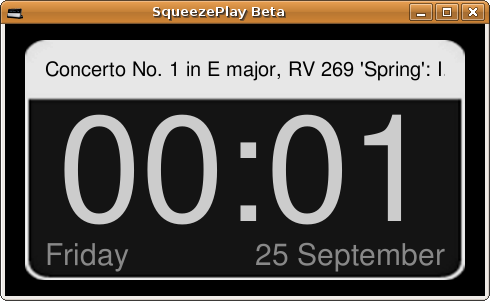
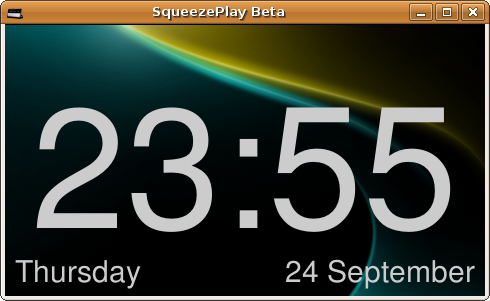
This is a screensaver for Squeezebox Controller/Touch/Radio devices that shows a clock. It is possible to select among a number of different styles and you can configure what kind of date/time information you like to show.
All earth and moon images used in the Daylight and Moon styles are downloaded at runtime from http://www.die.net/earth
Contents |
Installation
- Goto Squeezebox Server Settings/Plugins and make sure the Show all 3rd party plugins checkbox is checked
- On the Squeezebox Touch, Radio or Controller goto Settings/Advanced/Applet Installer and select to install Custom Clock applet.
- Please note that earlier versions of this applet will require you to also install the License Manager applet.
- Please note that earlier versions of this applet will require you to purchase a license.
- Optionally also install the Custom Clock Helper plugin through Squeezebox Server Settings/Plugins which makes it possible to create your own custom clock styles
- If you install the Custom Clock Helper plugin you might also want to look at the available Custom Clock styles
Note!
- More information about how to purchase and activate the commercial license can be found through the License Manager plugin
Customization
It's very easy for the developer to add new custom styles on user request, you just have to create the necessary images.
Generally speaking all the text items can be resized, colored and positioned pretty much as you like to make them fit your clock face image.
Post in the 3rd party plugin section of the forum and mention "Custom Clock" in the title of the thread if you have made some images you like to be added as a style.
Custom Clock Helper
If you like to create your own clock style you should install the Custom Clock Helper plugin in your Squeezebox Server. By doing this you will be able to create new styles or edit the existing styles directly in your own setup.
Creating new styles
The procedure after installation is as follows:
- Goto Squeezebox Server Settings/Plugins/Custom Clock Helper
- Select the style you like to change or "New..." if you like to create a new one
- Modify any style parameters and click save
- On the Controller/Radio/Touch, goto Settings/Screen/Custom Clock Settings/Styles
- In the list of styles, first select another style then select the style you just edited. This will load your new style attributes and the next time the screen saver is activated it will use the updated attributes
- After you have selected your new style on Controller/Radio/Touch you can make sure the screen saver is activated. When it's activated and the correct style selected, any changes in the Custom Clock Helper plugin will be visible immediately on the Controller/Radio/Touch screen.
Note!
I would love to add more styles to the default list, so if you create a new style you are satisfied with, please post it's parameters in the 3rd party plugins section of the forum and it will be included it in a future release.
Sample styles can now be viewed at: https://wiki.lyrion.org/index.php/Custom_Clock_styles
Importing style configuration
The procedure to import a style configuration posted by someone else is:
- Goto Squeezebox Server Settings/Plugins/Custom Clock Helper
- Select the "Import..." alternative in the list box
- Paste the text from the style configuration you like to import
- Click save
- On the Controller/Radio/Touch, goto Settings/Screen/Custom Clock Settings/Styles
- Select the style you just imported
Digital clocks
In the digital mode there are two possible images:
- The background image (optional)
- A non transparent image with the screen resolution, this is typically a standard wallpaper image
- Touch: 480x272
- Radio: 320x240
- Controller: 240x320
- A non transparent image with the screen resolution, this is typically a standard wallpaper image
- The clock face image (optional)
- An image with completely or partly transparent background with the clock face in solid colors. You can design the clock face so it just fills part of the screen or the complete screen. The image will be centered on the screen if it's smaller than the resolution of the Squeezebox display.
The clock will be drawn to the screen as follows:
- Draw the background image
- Draw the clock face image on top of the background and center it on the screen
- Draw all the text items on top of background and clock face
Analog clocks
In the analog mode there are five possible images:
- The background image (optional)
- A non transparent image with the screen resolution, this is typically a standard wallpaper image
- Touch: 480x272
- Radio: 320x240
- Controller: 240x320
- A non transparent image with the screen resolution, this is typically a standard wallpaper image
- The clock face image
- An image with completely or partly transparent background with the clock face in solid colors. You can design the clock face so it just fills part of the screen or the complete screen. The image will be centered on the screen if it's smaller than the resolution of the Squeezebox display.
- It's important that the middle of the clock is in the middle of the image
- The clock face should be sized as listed below but the actual image can cover the whole screen, the clock face need to match the size of the hand images
- If you like to display information above and below the clock, it's preferable that the actual face has the maximum size
- Touch: 180x180
- Radio: 150x150
- Controller: 210x210 (sample)
- If you don't like to display information above and below the clock, you should use a face size with the maximum size
- An image with completely or partly transparent background with the clock face in solid colors. You can design the clock face so it just fills part of the screen or the complete screen. The image will be centered on the screen if it's smaller than the resolution of the Squeezebox display.
- The hour hand image
- A square image with completely or partly transparent background, it should have a size up to the Squeezebox display size, the standard clocks uses 240x240 (7.3) or 176x176 (7.4)
- The hour hand needs to start in the middle of the image and go straight up as when the clock is 12:00:00
- The image will be rotated when shown so the hour hand points in the correct direction according to the current time
- The length of the hour hand should match the clock face image
- Sample
- The minute hand image
- A square image with completely or partly transparent background, it should have a size up to the Squeezebox display size, the standard clocks uses 240x240 (7.3) or 176x176 (7.4)
- The minute hand needs to start in the middle of the image and go straight up as when the clock is 12:00:00
- The image will be rotated when shown so the minute hand points in the correct direction according to the current time
- The length of the minute hand should match the clock face image
- Sample
- The second hand image (optional)
- A square image with completely or partly transparent background, it should have a size up to the Squeezebox display size, the standard clocks uses 240x240 (7.3) or 176x176 (7.4)
- The second hand needs to start in the middle of the image and go straight up as when the clock is 12:00:00
- The image will be rotated when shown so the hour hand points in the correct direction according to the current time
- The length of the second hand should match the clock face image
The clock will be drawn to the screen as follows:
- Draw the background image and resize it to fit the screen if it's smaller or larger than the screen size
- Draw the clock face image on top of the background and center it on the screen
- Draw the hour image on top of the background and clock face, center it on the screen and rotate it according to current time
- Draw the minute image on top of the background and clock face, center it on the screen and rotate it according to current time
- Draw the second image on top of the background and clock face, center it on the screen and rotate it according to current time
- Draw all the text items on top of the background and clock face
Configuration format
The configuration in Custom Clock Helper allows you to configure a new screen with one or several items. Below follows a list of all configuration parameters.
itemtype
- text - A text label with a hard coded text, it will display whatever you enter in the text attribute
- timetext - A text label where you can enter time/date format keywords which will be replaced by values for the current time/date, see description of the text attribute for more information about possible keywords.
- tracktext - A text label where you can enter title format keywords which will be replaced by real values for currently playing track, see description of the text attribute for more information about possible keywords. Additional keywords are supported if you have Custom Clock Helper installed on the server, just note that this means that they won't be replaced when connected to TinySC or MySB.com
- trackplayingtext - Same as tracktext but only visible when a track is playing
- trackstoppedtext - Same as tracktext but not visible when a track is playing
- switchingtracktext - A text label that continuously will switch to show artist name, album name and track title, it's not configurable what to show like tracktext.
- switchingtrackplayingtext - Same as switchingtracktext but only visible when a track is playing
- switchingtrackstoppedtext - Same as switchingtracktext but not visible when a track is playing
- alarmtimetext - A text label similar to timetext but it will should the next alarm time instead of the current time
- clockimage - A background image for a digital or analog clock, the image is specified in the url parameter
- hourimage - A hour pointer image for an analog clock, will be rotated around its center with same speed as the hour pointer of an analog clock. The pointer should be att 12:00 in the image to show correct time on a normal analog clock. The url attribute specifies the image to use.
- minuteimage - Same as hourimage but represents the minute pointer of an analog clock
- secondimage - Same as hourimage but represents the second pointer of an analog clock
- playstatusicon - An item that shows different images based on the current playing state, the different images are specified in the url.play, url.stop and url.pause attributes
- shufflestatusicon - An item that shows different images based on the shuffle state, the different images are specified in the url.songs and url.albums attributes, when shuffle is off no image at all is shown
- repeatstatusicon - An item that shows different images based on the repeat state, the different images are specified in the url.song and url.playlist attributes, when repeat is off no image at all is shown
- wirelessicon - An item that shows different images based on the wireless network status, the different images are specified in the url, url.3, url.2, url.1, url.NONE, url.ERROR, url.SERVERERROR attributes.
- batteryicon - An item that shows the current battery charging state on a Squeezebox with battery support, the different images are specified in the url, url.NONE, url.AC, url.4, url.3, url.2, url.1, url.0, url.CHARGING attributes
- sleepicon - An item that shows the current sleep state, the different images are specified in the url.ON and url.OFF attributes
- alarmicon - An item that indicates the current alarm state, the images are specified in the url, url.set, url.active, url.snooze attributes
- ratingicon - An item that displays the rating of current track, this item requires the TrackStat plugin to work. The images are specified in the url.0, .url.1, .url.2, .url.3, .url.4, .url.5 attributes.
- ratingplayingicon - Same as ratingicon but only displayed when something is playing
- ratingstoppedicon - Same as ratingicon but not displayed if something is playing
- covericon - Album cover art image for currently playing track
- coverplayingicon - Same as covericon but only displayed when something is playing
- coverstoppedicon - Same as covericon but not displayed if something is playing
- covernexticon - Same as covericon but displays the album cover for next track
- covernextplayingicon - Same as coverplayingicon but displays the album cover for next track
- covernextstoppedicon - Same as coverstoppedicon but displays the album cover for next track
- rotatingimage - An item that continuously rotates, it can have different images when playing and not playing and you can configure the rotation speed and direction. The images are specified in the url, url.playing, url.playingrotating, url.stopped, url.stoppedrotating.
- elapsedimage - An item that indicates the elapsed time of the currently playing track, it can be configured to move on the screen, to clip the image or to rotate the image. The images are specified in the url.rotating, url.playingrotating, url.stoppedrotating, url.slidingx, url.playingslidingx, url.stoppedslidingx, url.clippingx, url.playingclippingx, url.stoppedclippingx attributes
- analogvumeter - An analog VU meter item where you can configure the image to be used for the VU meter in the url attribute. The image should be an image with 25 sub images layed out horizontally where easy sub image represent a specific level for a single channel.
- digitalvumeter - A digital VU meter item where you can configure which images to use in the url, url.tickcap, url.tickon, url.tickoff attributes
- spectrummeter - A spectrum meter item where you can configure the colors, height, number of bars and a lot more.
- appleticon - A custom icon item implemented by another third party applet, the item type used is specified in the icontype attribute. Note, this item requires that the other applet is installed else it will not be shown at all. See icontype attribute documentation for more information about supported item types. If several images are supported by a specific icontype value, this is configured in the image attribute.
- applettext - A custom text item implemented by another third party applet, the item type used is specified in the texttype attribute. Note, this item requires that the other applet is installed else it will not be shown at all. See texttype attribute documentation for more information about supported item types. If several text values are supported by a specific texttype value, this is configured in the text attribute.
- pluginicon - A custom icon item implemented by another third party plugin, the item type used is specified in the infotype attribute. Note, this item requires that the third party plugin is installed. See infotype attribute documentation for more information about supported item types. If several images are supported a specific image is selected with the logotype attribute. The item supports to switch through lists of images in the same fashion as for example the sdtmiscicon item type.
- plugintext - A custom text item implemented by another third party plugin, the item type used is specified in the infotype attribute. Note, this item requires that the third party plugin is installed. See infotype attribute documentation for more information about supported item types. If several text types are supported a specific text attribute or combination of text attributes are specified with the format attribute. The item support to switch through lists of text items in the same fashion as for example the sdtmisctext item type.
- imageicon - A image icon which you can use to show a resized image or part of an image by specifying that it should be clipped. The actual image is specified in the url attribute.
- galleryicon - An item that cycles through images from the third party Picture Gallery plugin. If the favorite attribute has been specified it will limit the images to those in that favorite else it will show images which is in any of the defined favorites.
- sdttext - An item that shows Super Date Time text based weather information, the information to be shown is configured as keywords in the sdtformat attribute and the period attribute controls which forecast period the text should represent. This item requires that Super Date Time is installed on the server.
- sdticon - An item that shows a Super Date Time weather icon where the period attribute controls which forecast period the icon should represent. This item requires that Super Date Time is installed on the server.
- sdtsporttext - An item that shows Super Date Time sport results textual information, the sdtformat attribute is used to configure the keywords that describes what part of the result information to show. If noofrows is set to 1 and scrolling is set to true, it scrolls through all the results, if scrolling is false or noofrows is larger than 1 it switches continuously through the results. It's possible to limit the results shown through the sport attribute if you only like to show results for a specific league. This item requires that Super Date Time is installed on the server.
- sdtsporticon - An item that shows Super Date Time sport results logotypes, the logotype attribute specifies which type of logo to show. It's possible to limit the results shown through the sport attribute if you only like to show results for a specific league. This item requires that Super Date Time is installed on the server.
- sdtmisctext - Similar to sdtsporttext but shows miscellaneous information instead of sports result, the infotype has to be configured to indicate what type of information it should show. The selected attribute can be used to limit the shown items even further.
- sdtmiscicon - Similar to sdtsporticon but shows miscellaneous information instead of sports result, the infotype has to be configured to indicate what type of information it should show. The selected attribute can be used to limit the shown items even further.
- sdtstocktext - Similar to sdtsporttext but shows stock information instead of sports result, the stock attribute can be used to show a single stock.
- sdtstockicon - Similar to sdtsporticon but shows stock information instead of sports result, the stock attribute can be used to show a single stock.
- sdtweathermapicon - An item that shows weather maps provided through the Super Date Time third party plugin, weather maps has to be enabled in the Super Date Time configuration to make this item show anything.
- songinfoicon - An item that shows images provided through the third party Song Info plugin, the type of images to show is configured in the songinfomodule attribute. This can for example be used to show artist or album images from LastFM web site of currently playing track.
infotype
The infotype attribute differs from different item types and also depends on which plugins you have installed in Squeezebox Server, here are some samples of different supported values
- sdtmiscicon
- stocks - Stocks information from the Super Date Time plugin
- mythtvactive - Active recordings on MythTV server from the MythTV plugin
- mythtvpending - Pending recordings on a MythTV server from the MythTV plugin
- sdtmisctext
- getWeatherLong - Long weather forecasts from the Super Date Time plugin
- stocks - Stocks information from the Super Date Time plugin
- mail - New mails from the Mail plugin
- mythtvactive - Active recordings on MythTV server from the MythTV plugin
- mythtvpending - Pending recordings on a MythTV server from the MythTV plugin
- pluginicon
- mythtvactive - Active recordings on MythTV server from the MythTV plugin
- mythtvpending - Pending recordings on a MythTV server from the MythTV plugin
- mailindication - New mail indication from the Mail plugin, can be used to adding a new mail icon on your clock style
- plugintext
- mythtvactive - Active recordings on MythTV server from the MythTV plugin
- mythtvpending - Pending recordings on a MythTV server from the MythTV plugin
- mail - New mails from the Mail plugin
- mailindication - New mail indication from the Mail plugin, can be used to adding a new mail counter on your clock style
text
The text attribute contains different keywords for different items, the available keywords are shown below
- timetext
- %I1 - Hour (1-12)
- %I - Hour (01-12)
- %H1 - Hour (0-23)
- %H - Hour (00-23)
- %p - am/pm
- %M - Minute (00-59)
- %S - Second (00-59)
- %a - Short weekday (Wed)
- %A - Weekday (Wednesday)
- %d1 - Day of month (1-31)
- %d - Day of month (01-31)
- %b - Short month (Apr)
- %B - Month (April)
- %m1 - Month (1-12)
- %m - Month (01-12)
- %Y - Year (2010)
- %y - Year (10)
- alarmtimetext
- %I1 - Hour (1-12)
- %I - Hour (01-12)
- %H1 - Hour (0-23)
- %H - Hour (00-23)
- %p - am/pm
- %M - Minute (00-59)
- %S - Second (00-59)
- tracktext, trackplayingtext, trackstoppedtext
- By default it supports the following keywords
- ALBUM
- ARTIST
- TITLE - Title of current track
- BAND
- COMPOSER
- CONDUCTOR
- TRACKARTIST
- ALBUMARTIST
- RATING
- TRACKNUM - The track number of the current track on the album
- DISC - The disc number for the disc on which the current track exists
- DISCCOUNT - The total number of discs in this album
- NEXTALBUM - The album of next track in current playlist
- NEXTARTIST - The artist of next track in current playlist
- NEXTTITLE - The title of next track in current playlist
- If Custom Clock Helper plugin is installed on the server it will in addition to the above keywords also be able to show any title format string that has been configured in the server settings and in the Custom Clock Helper plugin.
- By default it supports the following keywords
- applettext (Possible values depends on the value of texttype)
- texttype=weather (Requires Weather applet)
- %description - Current condition
- %temp - Current temperature
- %humidity - Current humidity
- %temp_pws - Current temperature from a personal weather station (if configured)
- %humidity_pws - Current humidity from a personal weather station (if configured)
- %observation_epoch - Observation time
- %dayName.1 - Weekday today
- %highTemp.1 - Highest temperature in todays forecast
- %lowTemp.1 - Lowest temperature in todays forecast
- %dayName.2 - Weekday tomorrow
- %highTemp.2 - Highest temperature in tomorrows forecast
- %lowTemp.2 - Lowest temperature in tomorrows forecast
- %dayName.3 - Weekday day after tomorrow
- %highTemp.3 - Highest temperature forecast for day after tomorrow
- %lowTemp.3 - Lowest temperature forecast for day after tomorrow
- %scaletemp - Temperature scale (C/F)
- texttype=timetext (Requires Text Clock applet)
- multirow - Time on three rows
- singlerow - Time on single row
- texttype=weather (Requires Weather applet)
image
The image attribute differs depending on which icontype the appleticon has been configured with.
- applettype=daylight (Requires Daylight Clock applet)
- /moon - Moon
- /earth/mercator - Mercator
- /earth/mercator-cloudless - Mercator cloudless
- /earth/peters - Peters
- /earth/peters-cloudless - Peters cloudless
- /earth/rectangular - Equirectangular
- /earth/rectangular-cloudless - Equirectangular cloudless
- /earth/mollweide - Mollweide
- /earth/mollweide-cloudless - Mollweide cloudless
- /earth/hemisphere - Hemisphere
- /earth/hemisphere-cloudless - Hemisphere cloudless
- /earth/hemispheredawn - Dawn (Dawn half of hemisphere)
- /earth/hemispheredawn-cloudless - Dawn cloudless (Dawn half of hemisphere)
- /earth/hemispheredusk - Dusk (Dusk half of hemisphere)
- /earth/hemispheredusk-cloudless - Dusk cloudless (Dusk half of hemisphere)
- /earth/hemispheredawnduskmoon - Dawn, Dusk or Moon depending on time of day
- /earth/hemispheredawnduskmoon-cloudless - Cloudless Dawn, Dusk or Moon depending on time of day
- applettype=weather (Requires Weather applet)
- icon - Current condition
- icon1 - Todays forecast condition
- skyicon1 - Forecast condition tonight
- icon2 - Forecast condition tomorrow
- skyicon2 - Forecast condition tomorrow evening
- icon3 - Forecast condition the day after tomorrow
- skyicon3 - Forecast condition on the evening the day after tomorrow
logotype
The logotype attribute differs a little bit depending on which item type it's configured in.
- sdtsporticon
- logoURL - League logo
- homeLogoURL - Home team logo
- awayLogoURL - Away team logo
- homeLogoURLorlogoURL - Home team logo (or league logo if no team logo exists)
- homeLogoURLorlogoURL - Away team logo (or league logo if no team logo exists)
- sdtstockicon
- daychartURL - Day chart image
- sdtmiscicon
- Depends on value of infotype, since this will vary depending on installed plugins, it's easiest to find possible values in the logotype attribute configuration drop list in Custom Clock Helper plugin
- pluginicon
- Depends on value of infotype, since this will vary depending on installed plugins, it's easiest to find possible values in the logotype attribute configuration drop list in Custom Clock Helper plugin
sdtformat
The sdtformat attribute differs a little bit depending on which item type it's configured in.
- sdttext
- Uses the same weather % keywords as in Super Date Time configuration, see Super Date Time documentation for more information.
- sdtsporttext
- %homeTeam - Name of home team
- %homeScore - Home team score
- %awayTeam - Name of away team
- %awayScore - Away team score
- %gameTime - Time of game or indication that the game is finished
- %sport - The name of the league
- sdtstocktext
- %lastdate - Last trade date
- %volume - Volume
- %change - Change
- %pchange - Percent change
- %name - Name of stock
- %prevclose - Previous close
- %ticker - Ticker symbol of stock
- %open - Open
- %high - High
- %low - Low
- %lasttrade - Last trade
- %lasttime - Last trade time
- sdtmisctext
- Depends on value of infotype, since this will vary depending on installed plugins, it's easiest to find possible values in the sdtformat attribute configuration drop list in Custom Clock Helper plugin
format
The format attribute contains different keywords for different items, to see the possibilities it's easiest to just save the item without any value in the format attribute and you will see the possibilities in the drop list beside the format attribute in Custom Clock Helper settings page.
framewidth, framerate
These attributes are used to create animated icons based on an icon with horizontal sub images, the framewidth specifies the pixel width of the sub images and framerate specifies the animation speed in number of frames per second.
For a sample image where animations can be used, see the battery charging icon:
clipx, clipy, clipwidth, clipheight
These attributes are used to specify that only a specific part of the image should be shown, clipx and clipy specify the upper left corner of the clip area and clipwidth and clipheight specify the width and height. This is mostly useful for weather images where you might want to zoom into the image and only show a smaller area.
visibilitygroup, visibilityorder, visibilitytime
These attributes are used to configure something called visibility groups, the general description is:
- visibilitygroup - Name of visibility group, it will cycle through all images within the same group
- visibilityorder - The sorting order of visibility group, images with the same visibility order are shown at the same time
- visibilitytime - The time an item should be visible after it has been shown, please note that the items with switching information, for example sdtsporttext and sdtsporticon, automatically calculates the visibility time and modifies the visibility time of other items within the same visibility group/order
Sample 1:
- Configuration
- item 1: visibilitygroup="group1", visibilityorder=1, visibilitytime=2
- item 2: visibilitygroup="group1", visibilityorder=1, visibilitytime=2
- item 3: visibilitygroup="group1", visibilityorder=2, visibilitytime=4
- Result
- Item 1 and Item 2 will be shown simultaneusly for 2 seconds
- Item 1 and Item 2 will be hidden and instead Item 3 will be shown for 4 seconds
- Item 3 is hidden and the process starts over from 1
Sample 2:
- Configuration
- item 1: visibilitygroup="group1", visibilityorder=1, visibilitytime=2
- item 2: visibilitygroup="group1", visibilityorder=2, visibilitytime=3
- item 3: visibilitygroup="group2", visibilityorder=1, visibilitytime=1
- item 4: visibilitygroup="group2", visibilityorder=2, visibilitytime=4
- Result
- We have two completely separate groups, group1 and group2 which is cycled through
- Group 1
- Item 1 is shown for 2 seconds
- Item 1 is hidden and item 2 is shown for 3 seconds
- Item 2 is hidden and the process starts over from 1
- Group 2
- Item 3 is shown for 1 second
- Item 3 is hidden and item 4 is shown for 4 seconds
- Item 4 is hidden and the process starts over from 1
- Group 1
Sample 3:
- Configuration
- item 1 sdtsporttext: visibilitygroup="group1", visibilityorder=1, visibilitytime=
- item 2 timetext: visibilitygroup="group1", visibilityorder=1, visibilitytime=1
- item 3 timetext: visibilitygroup="group1", visibilityorder=2, visibilitytime=4
- Result
- Item 1 and Item 2 are shown simultaneously, they are shown until all sport results in item 1 has been shown (calculated as interval attribute multiplied with number of games to show result for)
- Item 1 and Item 2 are hidden and item 3 is instead shown for 4 seconds
- Item 3 is hidden and the process starts over from 1
Note!
If you want to switch between complete screens it might be better to configure these as separate styles and instead use the Screen Switcher applet to switch through them. The advantage of using the Screen Switcher applet is that you can easily add another screen if you like to, the disadvantage is that there is now way to configure it to have dynamic times depending on the number of sport results.
Bugs and new features
The current list of known bugs and wishes for new features can be found here:
If you want to encourage future development of this plugin you should also consider making a donation or purchasing a license